Page 2 of 2

The 3rd Platform will Kill VDI

“The 3rd Platform will kill VDI.” That’s a bold statement, so I’d better qualify it. But first what is the 3rd Platform? Before I answer let’s look back at the 1st and 2nd Platforms.

1st Platform
Launched April 1964, the mainframe computer is now 50. Highly successful, mainframes have connected millions of users to thousands of applications. Still in use today, mainframes are in the background keeping the modern world spinning handling airline reservations, cash machine withdrawals and credit card payments. Mainframes are very good at doing small-scale transactions over and over again, for example, adding or taking figures away from bank balances.
My eyes widened when I saw my first mainframe back in 1979 on a school trip to Lancaster Polytechnic, (Coventry University). It was like something out of science fiction taking up a room the size of a football pitch. I don’t have a picture the Lancs Poly computer suite, but the stock picture below should give you an idea.

Mainframe 1964
Mainframe now 50yrs old and still used

The end user experience was limited. For end users, interaction was through the direct connected “dumb” terminal. This was just a keyboard with monotone screen, and no mouse. Users had a limited set of core business applications. And users had no mobility, in fact to use the computer they had to go to it. And reports printed out reams of perforated paper being tractor fed in dot-matix printers. Printing was slow as done line-by-line. The ideas of “point-and-click” and “drill-down data analysis” were just fantasy. This computer was not personal in any way. Although applications we’re quite basic compared with the rich applications we all use now, not having an intuitive graphical interface users like myself found text based menus difficult to remember and navigate. It took a long time to learn the system.

Computer printout, reports old style

2nd Platform

For me, the first hint of change came in the early 90s. Used mainly by accountants, desktop PCs were taking ground in the office space. Accountants wanted to supplement their computing experience through the use of additional local applications such as Microsoft Excel, but needed continued use of Business applications hosted on the mainframe. So, I was busy removing dumb terminals, installing 5250 emulation cards and installing PC software that enabled desktop PCs to emulate IBM dumb terminals. In this instance, 5250 emulation was a “bridging technology” enabling 2nd Platform PCs and servers to bridge the two platforms.

But, ground was also gained in the application space. As the client-server architecture matured using easily available x86 Windows Servers, business applications went from thousands to tens of thousands. Some were rewritten 1st Platform apps, but most apps were new representing new innovative business solutions. Focus shifted to developing applications for presentation within the desktop PC using the intuitive Windows GUI. Working with .NET and ASP, I too move from my beloved CL language and RPG programming. I was now free to rapidly develop corporate intranet pages that displayed sales results in a few clicks. I was also free to work on projects where technical documents would be distributed electronically, then retrieved using simple databases queries and PC client software.

For the users, well they felt empowered. The computer was now personal. It was theirs with their numerous business automating applications that could be personalised. And with all this need, the 2nd Platform saw an explosion in servers, desktops and laptops. And all the people required to support it all doubled, and then quad doubled. Users could finally break the boundaries and take computing to the home, remote offices, and the field. The computer became central to everything we do with applications covering every sector and every use case.

Shown below, the typical 2nd Platform 3-tier application architecture shows an intermediary level, meaning the architecture is generally split up between:

  • A client, i.e. the Windows PC, which requests the resources, equipped with a user interface (usually a web browser) for presentation purposes.
  • The application server (also called middleware), whose task it is to provide the requested resources, but by calling on another server.
  • The database server, which provides the application server with the data it requires.
3-tier client-server architecture

Now VDI plays very well here. It main provides:

  • Increased mobility: A Windows desktop can be virtualised, hosted in a secure data center, and accessed in another continent, e.g. a call center in India.
  • Increased security: Unlike using a local PC, only the images, mouse and keyboard clicks traverse the network. So data can be viewed, but remains secured in the data center.
  • Improved management: Having many client PCs requires a large ongoing management overhead. VDI fixes this problem with improved management tools leveraging the concept of “do it once for many.”
  • IT as a Service: Centrally controlled, leveraging virtualisation, much can be automated. Also, as software defined, much can be delegated to users through the use of self-service portals.

So, in summary, for the 2nd Platform, a well deployed VDI solution can increase productivity, enable a truly mobile workforce and save ongoing management costs. To be honest if you manage your VDI estate the same as your PC estate (for the last 15 years), well you’re missing the point. Successful VDI must include the necessary transformation and business process change. And yes, you can manage more users with less PC support staff. Think 2 VDI support guys to every 2,000 VDI users, sounds scary, but do it right and it’s achievable.

3rd Platform

So now we’re moving to the 3rd Platform. Why? Because we’re out growing of the 2nd Platform. Data is becoming Big Data. Consumerization of IT gives us “information appliances”, tablets, smartphones, smart TVs, gaming consoles, The Internet of Things. As users we’re not just mobile, but we’re constantly on-the-go. And increasingly connected devices are creating data lakes primed for analysis. And not forgetting, Business wants increased levels of agility, being the need to rapidly execute business change and development – adapt or die. Be Netflix, not Blockbuster.

The block below details The Internet of Things and Big Data in flight, so to say.

Virgin Atlantic is preparing for a significant increase in data as it embraces the Internet of Things, with a new fleet of highly connected planes expected to create over half a terabyte of data per flight each. IT director David Bulman said: “The latest planes we are getting, the Boeing 787s, are incredibly connected. Literally every piece of that plane has an internet connection, from the engines, to the flaps, to the landing gear. If there is a problem with one of the engines we will know before it lands to make sure that we have the parts there. It is getting to the point where each different part of the plane is telling us what it is doing as the flight is going on. We can get upwards of half a terabyte of data from a single flight from all of the different devices which are internet connected.”

Source: Computerworld UK. Boeing 787s to create half a terabyte of data per flight, says Virgin Atlantic

http://www.computerworlduk.com/news/infrastructure/3433595/boeing-787s-create-half-terabyte-of-data-per-flight-says-virgin-atlantic/

What make data big? Big Data is data that exceeds the processing capacity of conventional database systems. The data is too big, moves too fast, or doesn’t fit conventional database and application structures. Basically, our conventional 2nd Platform, 3-tier architecture is bursting at the seams.

With the 3rd Platform its predicted users will increase from hundreds of millions to billions. And applications will increase from tens of thousands to millions. So what’s the answer? It’s a different architecture based on scale-out data processing, massive storage capabilities and rapid application development that enables ubiquitous access using all devices, not limited to desktop PC and laptops.

Shown below, is what a 3rd Platform architecture looks like.

Big Data, agile app development, any device, mobile

Central to the solution is Hadoop. Not a big bucket, but the “Data Lake.” Hadoop brings the ability to cheaply process large amounts of data regardless of its structure. Using MapReduce framework developed by Google in response to the problem of creating web search indexes. MapReduce provides the ability to take a query over a dataset, divide it, and run it in parallel over multiple server nodes – ability to scale. Distributing the computation solves the issue of data being too large to fit onto a single server. Using commodity Linux servers this is very much a scale-out solution to the Big Data problem. At a lower level, Hadoop uses HDFS, a distributed file system giving all server nodes in a cluster access to the data. Also robust, server nodes in a cluster can fail and not abort the computation process. Unlike conventional systems, there are no restrictions on the data that HDFS can store.

For the end-user, the 3rd Platform offers a break from the ubiquitous Windows desktop. Already we’re seeing Apps developed just for IOS and Android. So the 3rd Platform promises greater application choice with increased data access, understanding and user mobility.

VDI in the 3rd Platform

Now back to my initial statement, “The 3rd Platform will kill VDI.” Ok, behind every VDI desktop is a virtual Windows desktop – Windows Server, Windows XP, Windows 7, and Windows 8. But driven by application development and the consumerization of devices, it’s logical to conclude the Windows desktop (in its current form) and therefore VDI will eventually be superseded.

But hold on! Don’t cancel your VDI projects just yet……

It’s all about the applications, and getting those apps to your users. VDI is a great bridging technology between the 2nd and 3rd Platforms. Just as we moved from the 1st Platform to the 2nd we used methods of bridging, for example 5250 emulation, VDI becomes even more relevant providing the access to 2nd Platform apps with the mobility and consumer device usage choice that the 3rd Platform promises.

So will the 3rd Platform kill VDI? Not just yet. While we still have many tens of thousands 2nd Platform apps that rely on the Windows desktop to run and present those apps, VDI will remain relevant. In fact as a bridging technology giving 3rd Platform “type” mobile access and consumer device usage, VDI is very relevant. But be aware; it’s the application developers that are the new kingmakers. As developers shift from 2nd Platform client-server architectures and focus on new agile app development for IOS and Android, Windows desktop sales will continue to decline.

I don’t really believe VDI will die, in fact the opposite is true. The 3rd Platform will enable VDI evolution where Cloud Computing and the 3rd Platform put information into the hands of virtually any device, and any object. Microsoft explain this evolution the best. Checkout Microsoft’s vision for the future. Then ask yourself how it works.

My answer. Its simple, ubiquitous network connectivity, Cloud Computing hosting 3rd Platform big data solutions and apps. And then the ability to remote display apps that are hosted somewhere in a cluster of data centers, and then display those apps remotely on multiple objects, while users are on the go. Sounds easy. Well that’s evolution.

Accelerate VMware ESX with SSD Flash

I’m having a bit of a “geek out” this weekend. But before I test my speedy new SSDs attached to VMs hosted within my ESX hosts, I thought I’d share just how easy it is to install and configure Samsung 840 Pro SSD Flash disks. My servers are HP ML110s and I’m using VMware vSphere 5.1.

1. Install the SSD within the caddy. Then install within the server disk drive bay.

ssd_caddy

2. Connect the SSD to the 6Gb/s SATA bus, and connect power cables.

Note: Samsung 840 Pro is also compatible with 3Gb/s.

SATA_cable

3. Start up your ESX server, then connect and login using vClient.

4. Using vClient, click the ESX Configure tab and then select Storage Adapters. Click Rescan All.

ssd01

5. Click OK to scan all attached devices.

6. Select Storage, then click Add Storage.

ssd04

7. Select Disk/LUN storage type and then click Next.

8. You should now see the SSD disk is added. Select you SSD, then click Next.

ssd06

9. Select VMFS-5 file system. Click Next.

10. Give the Datastore to be created a name, e.g. 01flashSSD01.

ssd09

11. Click Next to create the Datastore using all available disk space.

12. Review your configuration. Click Finish.

ssd11

And that’s it. I did say easy. You now have high-speed SSD disk installed, configured and presented as a VMFS-5 Datastore. In my next blog I’ll run a 64-bit Windows 2008 server on SSD and I’ll use IOMETER to compare IOPs achieved with traditional spinning disk.

Volumetric Efficiency with Turbocharged EMC FAST VP

When I left school, working in motor vehicle engineering I learnt how adding a turbocharger to an engine would increase the volumetric efficiency. For example, fit a turbo charger to a 1.6ltr engine and it performs like a 2.0ltr engine – we’ve increased the volumetric efficiency. But the real advantage is when 2.0ltr performance is not required, because now we get the fuel efficiency of a smaller lump. So what we’ve got here is performance on demand, and efficiency from having a smaller engine in the first place. Why am I talking about this? Because when you think about it, intelligent storage with a bit of Flash follows the same concept – Flash turbocharges storage by increasing performance on demand.
Using optimized software with automated tiering technologies that leverage Flash/SSDs, top storage vendors such as EMC are giving us volumetric efficiency by:

  • Providing a caching layer that keeps data in cache (memory) serving the hottest data.
  • Adding a performance SSD tier in a multi-tiered array (turbocharger) that’s used when needed.

I call it Volumetric Efficiency, EMC’s calls it FAST VP (fully automated tiering for virtual pools). With FAST VP, storage is managed in pools consisting of different drive types including Flash SSD, together with high-performance SAS disks and high-capacity nearline (NL-SAS). Cache will deal with high I/O bursts. But during normal running, FAST VP turbocharges data blocks by intelligently moving blocks between tiers on demand. For example, highly active data will be given a boost by being moved from SAS disks to the SSD disks, and back again when activity decreases.
Just like my turbocharged engines, FAST VP results in a smaller, efficient storage footprint that requires less data center space, reduced power and less cooling. Of course, turbochargers are now fitted to most cars, trucks, trains and even ship engines. In motor vehicle technology terms it’s why we get more for less. It’s why my car can go from 0-60mph in less than 9 seconds. And it’s why I get 45mpg when not heavy footed. Yes, it’s a diesel, but performs like a petrol sports.
So, when refreshing your Enterprise storage, think Volumetric Efficiency and think how your car works. As EMC says, “A little bit of Flash goes a long way”. The picture below illustrates my point where 3 racks of traditional 15k storage has been replaced by a single turbocharged stack using FAST VP with SSD Flash tier.

EMC FAST_VP
FAST VP gives storage volumetric efficiency, turbo boost

Samsung SSD 840 Pro vs 15K RPM Disks

It’s February year 2000. And Seagate have announced the world’s first hard drive to operate at 15,000 RPM delivering 3.9 msec average seek times – the fastest hard drive in the world. But that’s where it stopped. Hard drives got smaller, but not faster. The laws of physics have prevented spinning disks going any faster. So we aggregate many disks using RAID in order to meet demanding IOPs hungry OLTP databases and now VDI. Storage hasn’t kept pace with Moore’s law, not like CPUs. Not until now……

IMG_0190
HP DL360 servers with ULTRA320 15k HHDs

In my garage lab, I’ve recently retired my 2 trusted old HP DL380 servers. Equipped with 15K disks these servers were the best I could get, and my workhorse for demonstrating VDI. So just what did I get? Let’s do the math.

Disk_perf
ULTRA320 SCSI HHD 15k, 167 IOPs with 64K blocks

As we can see, each disk gives me up to 167 IOPS. With 6 disks per server at max I  get (6 x 167) = 1002 IOPs. Now taking into account 70% utilization we get (1002 x 0.7) = 701 IOPs available per sever.

Now enter the Samsung SSD 840 Pro. I’ve switched off my DL380s, my and installed 256GB SSD drives in each of my HP ML110 VMware ESX hosts. First benefit – lower power bills!!!

IMG_0180
Samsung 840 Pro, not much bigger than a credit card

Samsung make some real wild performance claims. But even if they’re half right it’s light years ahead of my old 15K disks.

  • Capacity: 256GB
  • Random IOPs: Read up to 100,000
  • Random IOPs: Writes up to 90,000

Now that’s Samsung’s spec, so next it’s testing time to see for myself just what “hyper drive” feels like. Seriously, I must admit first impressions are fantastic. Flash is certainly the way to go. It’s funny, what’s been done here in micro is what smart Business is doing. Spinning disk arrays are being replaced or supplemented with Flash disks. So instead of 150 spinning disks to give 15,000 IOPs we can add a Flash tier to hybrid arrays such as EMC’s VNX. And we can connect all Flash arrays where extreme IOPs are required. Whatever way you look at it, we get more for less. Hyper drive, stellar performance in a small foot print.

Virtualised Citrix XenApp servers using VMware

As many organisations are still running Citrix 4.5 on physical Windows Server 2003 moving to XenApp 6.5 or even VDI with XenDesktop 7 is a natural step. This is especially true as application and infrastructure servers have probably already been virtualised. And it’s no secret, using VMware vSphere for hosting Citrix XenApp and Terminal Server/Remote Desktop Services offers many benefits:

  • Rapid deployment using VMware automation enabling scalability
  • High availability and disaster recovery capabilities in-tune other hosted servers
  • Better integration with storage infrastructure
  • Improved management capabilities

There’s two ways to think about XenApp server capacity planning – fewer big servers, or more smaller servers. I prefer smaller servers and using virtualisation is ideal for this approach. So when virtualising Xenapp 6.5 servers we first need to determine the optimal number of XenApp servers per each vSphere host.

How many vCPUs should I assign?

With CPU hyper-threading switched on. Divide the total number of host logical cores by the number vCPUs assigned to each virtual XenApp server. For example, an ESX host with 32 virtual cores would host 8 virtual XenApp servers (32 / 4 = 8). Note: As performance increase is not linear, more than 2 vCPUs is a waste so my advice is stick with 2.

How much vMemory should I use?

Virtual memory assigned per virtual XenApp server really depends on user workload to be supported. I like to have a bit in reserve. So I don’t calculate on light users, but I consider all my users to be Normal and needing 512MB each. So if hosting 24 Normal user sessions per XenApp VM we’ll need (24 x 512) = 12,228MB or 12GB memory allocated to each XenApp VM.

How many users can I host per virtual XenApp server?

The amount of Normal users hosted per each XenApp server works out at between 20 and 24. This figure has been arrived at through experience. Also, its been found that dual socket servers perform better than quad socket servers as adding extra sockets doesn’t scale linearly.

Putting it all together

Using vSphere to host XenApp we can use the following optimal server configurations:

tableXen
Click image to enlarge

What about the IOPs?

For Normal users at steady state I advise 4 IOPs per user. So each XenApp server with 24 users requires (24 x 4) = 96 IOPs. Rounded up gives us 100 IOPs per XenApp VM. If hosting 8 XenApp VMs we’ll need (8 x 100) = 800 IOPs delivered to each ESX host from our storage infrastructure.

So there you have it. Using dual socket hosts we can support up to 10 XenApp VMs and up to 240 normal users per ESX host. Now take what I’ve written here as a guide. You still need to perform your own design validation and testing based on you actual user and application workloads. But at least this should get you started.

Putting desktops in the data centre

Branch Office

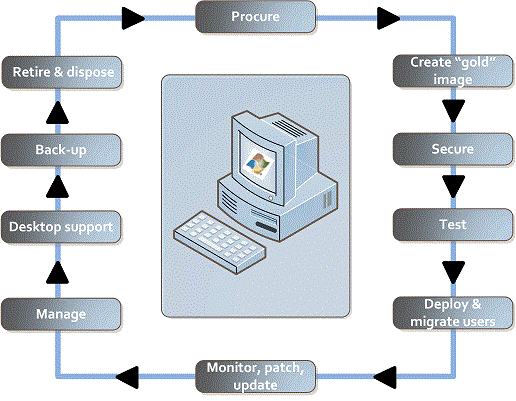
It’s was no good trying to stop it. Everyone wanted a desktop PC with the new the exciting Windows applications. Instead of brown manila envelopes and Sally the post girl delivering memos we got email. And instead of writing hand notes and begging the department secretary to type it up, we got MS Office and Word. By the late 90s it was a PC on every desk. And with this the PC replacement lifecycle was born. Yes, every 4-5 years, replace all PCs and migrate users to a newer operating system version. Crazy, but true.

PC on going manage & replace lifecycle

Ok, PCs and the whole user application explosion that Windows created and enabled did a lot to change business and improve business productivity – fact. But coming from a centralise computing background a few of us couldn’t help but think of better ways to support and manage desktops. So my first venture in putting Windows desktops in the data centre was with Windows Server 2000 and Terminal Services.

Using TS we created a solution where our branch offices could use hosted session based desktops providing their Windows desktop environments with common applications such as MS Office. And with links to Citrix servers hosting corporate apps. As early days we had some problems to overcome – but it worked. Hosted desktops, with hosted applications, and all from the data centre.

Retail

Next, I moved to Retail. Now Retail is all about resilience. So having everything hosted from a single data centre could result in multiple store outages should the data centre suffer an outage. So when building stores, each store would have it’s own server room with backend store server. Sales data would update a central server overnight. And in turn price and product changes would be pushed out from the central head office server. So during opening hours each store would run independently within its own site.

Well, I couldn’t get away with having only 1 centralised store server. But I could do something about not having PCs. I was the IT Manager, Architect, deployment and support engineer. I had only 2 staff with 6 mega-stores to support. So we needed to be smart as we didn’t have the bandwidth for desktop PC  support. So I turned to Terminal Server again.

The solution added a TS server per each store. And instead of PCs, each user would logon to a HP thin client running lightweight WindowsCE. This approach worked well allowing for different users working different shifts to logon to any device. And for me and my small team? We just had 1 super PC to manage and support per store. By locating TS servers on site within each store’s server room we’d reduced our support overhead, but maintained store independence and overall store resilience.

Software as a Service – SAP

Now working as IT Manager for an EMEA wide pharmaceutical business I was faced with the problem of giving our remote European offices access to centrally hosted SAP application services. We’d teamed up with a organisation offering SAP as a service hosted out of a Dublin Ireland data centre. My problem was poor network bandwidth across our corporate WAN. I couldn’t have the thick SAP Windows client connect and communicate over our WAN as the latency would kill the user experience resulting in helpdesk meltdown.

So my solution to the problem was to use a Citrix server within our UK based data centre hosting the SAP client software. This in turn connected over a fast network link to the Dublin data centre and the hosted SAP backend.

And the result of this solution…….? Our EMEA branch offices could click a desktop icon and connect to a Citrix session in the UK hosting the SAP client which in turn connected over a high-speed link to the SAP application servers. We’d made delivery thin as now only screen images and keystrokes associated with the SAP client were traversing our corporate WAN. We’d overcome the bandwidth limitations. And all this before the term Cloud, we’d Cloud enabled SAP.

The VDI light bulb moment

About 5 years ago I had my VDI “light bulb” moment. Already familiar and deploying server virtualisation I was introduced to desktop virtualisation using virtual machines as desktops. A very enthusiastic Citrix guy call Fraser did a good job on us. I went home and tried it for myself in my home lab – it worked, and I liked it. I had another way to put desktops in the data centre.

Central Government

With my new knowledge helping me where server session based solutions such as Terminal Server or Citrix XenApp didn’t work, I now had VDI in my toolbox.

I first architected a VDI solution for a Central Government department. Because the application wouldn’t play nice using a session based solution such as Terminal Server or Citrix XenApp I turned to VDI. Here, because each user had a dedicated Windows XP environment to themselves it worked as the hungry client-side application worked isolated within each dedicated VDI desktop.

This solution had the spin off benefits of increased productivity and security. Being a Case Management system the application required users to connect and search for cases using a local fat client app. Now using a laptop and VPN connection this was painfully slow. And with documents now downloaded to local laptop drives it wasn’t secure – yes we all remember the stories of Government laptops being left on trains or car back seats in full view. But with the application now running on desktops in the data centre it all changed. Case documents remained secure in the data centre, and due to VDI desktops and Case Management application servers being hosted side-by-side, performance was turbocharged.

Local Government

Consulting for a Borough Council with over 2000 users 4 years ago I discovered an organisation with a great appetite for VDI. Now doing VDI on mass 4 years ago required a lot of storage infrastructure in order to meet storage capacity and performance requirements. This was big cost. But it didn’t matter. Realising the benefits by changing the way the organisation worked resulted in bigger savings.

Using VDI this is what they did:

  • Reduced the desktop support team
  • Reduced office space by introducing hot desks
  • Enabled a work from home initiative
  • Reduced power consumption by using 7 watt thin clients instead of 70 watt PCs
  • Outsourced Council work to 3rd parties by allowing secured remote access to their VDI desktops
  • Stayed open when other Councils closed due to bad weather as staff could simply work from home

Later, having a joke, I offered to replace their VDI solution with new desktop PCs. They threatened to clamp my car and throw away the key.

Moral of these stories…..

Putting desktops in the data centre is good. And if done for the right reasons can bring many benefits including the Martini effect, increased security and reduced operational costs. As I’ve worked putting desktops in the data centre I seen changing technologies and attitudes. Technology just keeps getting better. How I would have done it 3yrs ago is not how I’ll do it today. One day all desktops will be hosted. Don’t believe me? Watch Microsoft’s envisioning video. Not a desktop PC or laptop to be seen.

VDI – well that’s not new

When I first started working as a Support Engineer it started a love affair with the IBM AS/400. What I didn’t realise at the time was that we had it all, by that I mean we had no:

  • Service Management
  • Project Management
  • No Service Desk
  • Few policies and procedures
  • No desktop support team
  • No server support team
  • No network team
  • No storage team
  • No security team
  • etc., etc., etc., more of the same………..

Well you get the message. Back in the mid 90s we did it all with a small team consisting of 1 manager and 5 of us doers. And we looked after over 500 users. Not a bad ratio, and we could have supported more users, even thousands.

That's me on the right, laying air guitar
That’s me on the right, playing air guitar

Now the trick to our success was centralised computing with near bullet-proof dumb terminals accessing centralised systems, i.e. no personal desktop PCs or distributed computing. And the users loved it too. They could logon to any terminal at any branch office, use any desk, and the terminals started instantly as no need to wait 20 minutes for a computer to boot. In fact when working from our head office in Sweden we’d even get our own personal menus. So our desktops followed us.

So writing this blog has got me thinking, “I’ve been putting desktops in the data centre for the last 18 years.” Only now its called VDI, or virtual desktop infrastructure. After realising distributed computing in the form of many desktops requires many operational overheads with desk-side engineers, help desk operatives, service management and on going support, we’re now turning full circle back to centralised computing. Putting desktops back in the data centre is the old, but new way. And if you don’t have a VDI strategy, then where have you been!!

Desktops in the data centre (centralised computing) has all ways had its advantages. Data is in one place where it is secure and can be easily  backed up. Management can be optimised using smaller teams and can better benefit from automation and self-service. And now we have the Martini effect where using all most any device, Windows desktops, applications and data can be accessed from the data centre anytime, anyplace, anywhere.  Using tablets, smartphones, thin clients (the new dumb terminals) and home PCs, data processing stays under one roof, while screen images, keyboard and mouse clicks traverse the network back to the connected device.

Note: If you didn’t grow up in the 70s or decadent 80s you may need to Google Martini and check out the YouTube clips.

In my next blog I’ll talk about when putting desktops in the data centre has worked for me.